How to set up a FiveM server
A practical guide to setting up a FiveM (FXServer) development server on Vestra: licence key, txAdmin or server.cfg, ports, resources and going public.
A FiveM server is FXServer, a Cfx.re registration key, and a server.cfg that starts your resources. This guide covers that setup on Vestra Hosting, for a light development or staging instance. It is not a preinstalled city, and it is not a sizing guide for a full roleplay production server.
Vestra's suggested starting point is Pro: 2 vCores, 6GB of DDR4 memory and 40GB of SSD storage, at £9.99 a month. Servers run in Falkenstein or Nuremberg, Germany.
What you need
- A Cfx.re account, to create a registration key in the Cfx.re Portal.
- A Vestra FiveM plan, ordered in billing. After payment, the server is set up automatically and appears in the game panel. Sign in with Vestra Passport.
- The FiveM client, to join and test.
- Licences for any framework or paid resources you intend to use, including any entitlement escrowed resources require on the account that runs this instance.
- An external database if your framework needs one. Databases are not included in any Vestra plan; keep credentials private and staging data separate from production.
FiveM servers include txAdmin as an option in the server's Startup settings. Take a manual backup before installing a framework or a large resource set. Every plan keeps three daily backups, plus one manual backup on Tiny, Starter and Pro, or three on Enterprise. Panel backups do not include databases.
1. Order the server
In billing, choose the FiveM game, a plan and a location, then pay. Prices are in GBP, billed monthly through Stripe. You can cancel in billing at any time, with effect at the end of the current paid period.
Pro is the suggested start for a small team testing a modest resource set. Tiny is £1.99 (0.5 vCore, 2GB, 15GB), Starter is £4.99 (1 vCore, 3GB, 30GB), and Enterprise is £19.99 (3 vCores, 12GB, 100GB, plus KVM Acceleration). On Tiny, Starter and Pro you can add storage at £1 per 10GB. A full roleplay stack, large streamed assets or a co-hosted database need a workload review; none of the plans guarantees a player count. If the server has not appeared in the panel after a while, contact support with the order email.
2. Get a Cfx.re licence key
Every public FiveM server needs its own registration key, which you provide; Vestra does not issue it.
- Open the Portal registration keys page and sign in.
- Under Active, use the + control to register a new server.
- Fill in the required listing details: name, tagline, description and language.
- Generate the key, then copy it.
Keep the key in protected configuration, not in a public repository. If it leaks, regenerate it in the Portal and replace it on the server. Use a separate key for this staging instance.
3. Open the panel and note the port
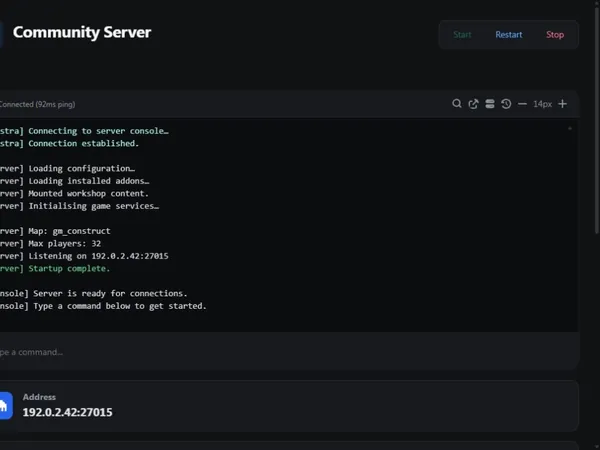
Open the new server in the panel. The address and port players should connect to are shown there; use those values, not an assumed default.
Every Vestra game server is allocated one port. Games that need more than one get the extras automatically; the documented list is Rust, ARK: Survival Evolved, Valheim and Project Zomboid. FiveM is not on that list. FXServer uses the same port for TCP and UDP, so that allocation is enough for game traffic. txAdmin's web interface is a separate TCP service (40120 in the Cfx documentation); ask support if you need that exposed.
Edit files in the Files page, or upload larger trees over SFTP using the Settings page details, exactly as shown. Startup shows the launch command and any variables the egg exposes, including the txAdmin option; restart after changing them. If a licence-key field is present, put the Portal key there as well as in server.cfg.
4. Boot a clean server first
Enable the txAdmin option in the server's Startup settings, then start the server from the panel and watch the console. You want a clean FXServer start and no licence-key error before you install a framework; the default recipe in the next section gives you that baseline. If the console reports that no licence key was specified, the key is missing from server.cfg or Startup, or the configuration file is not being executed. Fix that and restart. Prefer the recommended artifact if the panel lets you choose one.
5. txAdmin and a recipe
The recommended path is txAdmin, which can deploy a server from a recipe, edit server.cfg, and manage resources. Once it is enabled in Startup and the server is running, open the txAdmin URL shown in the console (default port 40120 in the Cfx docs, though yours may differ). Enter the console PIN, link your Cfx.re account, set a backup password, and name the server. Choose Popular Recipes, then the official default template (FiveM Basic Server (CFX Default) or CFX Default FiveM in the Cfx documentation). Review the recipe, paste your Portal key, run it, then save and run the server. Join from the FiveM client: press F8 and run connect with the address and port from the panel.
Start with that default recipe; some other templates need a database, which you would have to provide yourself. Leave framework recipes until you can join the default server.
If you would rather configure the server by hand, leave the txAdmin option off in Startup and write server.cfg yourself, starting with the official default resources: mapmanager, chat, spawnmanager, sessionmanager, basic-gamemode, hardcap and rconlog.
6. server.cfg basics
The configuration file lives in the server data directory. Official commands you will actually need:
endpoint_add_tcp "0.0.0.0:30120"
endpoint_add_udp "0.0.0.0:30120"
sv_licenseKey "your-portal-key"
sv_maxclients 48
set onesync on
Replace 30120 with the port shown in the panel, on both lines. Leave the address as 0.0.0.0 unless support tells you otherwise.
sv_licenseKey is the Portal key. The official example sets onesync to on, required for server-side state awareness and for more than 32 slots (on or legacy; above 64, on). The example sv_maxclients value is 48; raising it requires a Cfx Element Club Argentum subscription or higher, a current artifact, and a restart. That is a Cfx entitlement, not a Vestra plan feature.
Listing name, tagline and description are set in the Portal; the older sv_hostname, sets sv_projectName and sets sv_projectDesc commands are deprecated. Leave sv_scriptHookAllowed at 0, and leave RCON commented unless you have set a strong password.
7. Add resources in small batches
Resources live under the resources folder. Each resource needs an fxmanifest.lua (older __resource.lua files are deprecated). Folders in [brackets] are categories, not resources.
Upload a resource over the Files page or SFTP, then add ensure my-resource to server.cfg. ensure starts it, or restarts it if it is already running. After adding new folders, run refresh in the console, then ensure the resource. txAdmin can also reload resources from its Resources view.
Add a few at a time and read the first console error if something fails. A missing manifest means the folder will not start. Frameworks such as ESX or Qbox have their own documentation, usually need that external database, and can be deployed with a txAdmin recipe. Rehearse joining, permissions, persistence and rollback here before promoting a change to production.
8. Go public
To appear in the FiveM server list, do not set sv_lan to true, and leave sv_master1 "" commented or omit the line. An uncommented sv_master1 line lists the server as private and disables the connect button in the browser. Keep the Portal listing details filled in, bind both TCP and UDP to the panel port, and check that http://ADDRESS:PORT/info.json is reachable from outside.
It can take up to eight minutes after launch for a new server to appear in the list; test sooner with a direct connect from F8. Keep an unfinished staging server unlisted until you are ready.
Common problems
If the server never appears in the panel, it may still be provisioning; contact support with the order email if it does not show up. If no licence key was specified, check sv_licenseKey, any Startup field, and that server.cfg is being executed. A regenerated Portal key invalidates the old one.
If nobody can connect, confirm both endpoints use the panel port, then try connect from F8 and http://ADDRESS:PORT/info.json. A timeout on 30120 usually means the config still uses the Cfx example port. If the server is listed as private, comment out sv_master1 "".
If a resource fails to start, check the first console error and fxmanifest.lua, then run refresh. Confirm entitlements for paid resources. For hitches or a full disk, profile resources, clear old files, and ask support about a larger plan if you still hit the limit. More than 48 slots is limited by your Cfx subscription. Export the external database yourself; it is not in panel backups.
If the console error is unclear, paste it into Server Doctor, or ask on Discord, in a ticket, or at [email protected].
For upstream instructions, see the Cfx.re txAdmin setup, server commands and resource manifests.
Host this on Vestra
Plans, locations and the Pro recommendation are on the FiveM hosting page. Order Pro from there. For the panel, files, backups and ports reference, see the hosting docs.